MileBug alternative for iOS
iOS 26.2 broke MileBug at last (UPDATE: Just discovered it is working once again in iOS 26.5.2!); it hadn't been updated in years, the founder having apparently sold to Bending Spoons in 2018.
Failing to find a simple mileage tracker in the App Store, I cobbled together a Shortcuts workflow which does the job:
Setup
Create two files in On My iPhone/Shortcuts/:
log.csvwith the header lineDate,Vehicle,Start,End,Mileagestart.txtwith your current odometer reading (e.g.,12345)
Workflow
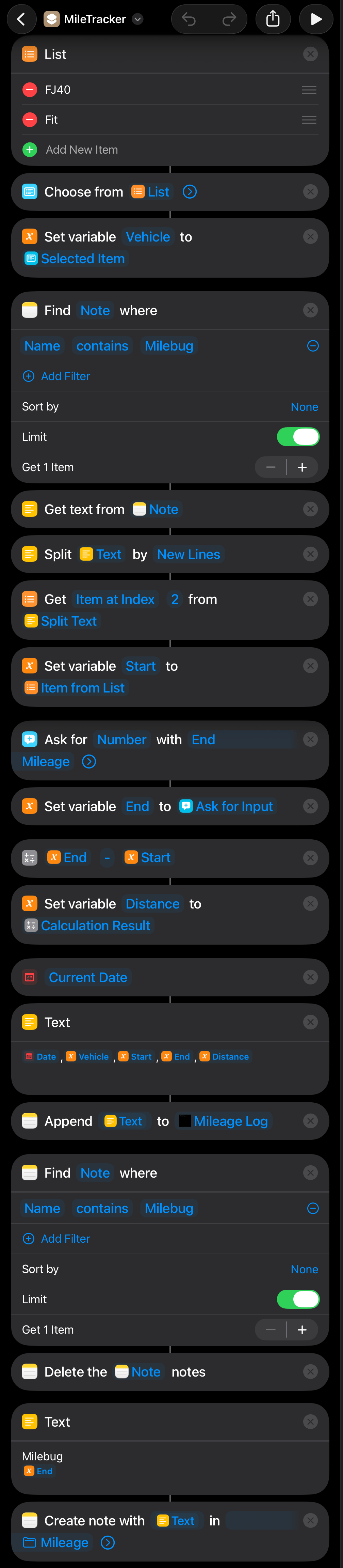
Open Shortcuts and create a new shortcut with the following actions and values:
- List - Replace the default
OneandTwowith your vehicles (e.g.,FJ40andFit) - Choose from List
- Get File from Folder - Clear the auto-populated
Selected Item, browse toOn My iPhone/Shortcuts/, and changeexample.txttostart.txt - Get Numbers from Input - Keep the
Filetoken from step 3 - Set Variable - Set
Variable NametoStartand keep theNumberstoken from step 4 - Ask for Input - Change
TexttoNumberand setPrompttoEnd Mileage - Set Variable - Set
Variable NametoEndand keep theAsk for Inputtoken from step 6 - Calculate -
End - Start - Text - Tap these variable tokens from the Select Variable popup, adding a comma between each:
[Current Date],[Selected Item],[Start],[End],[Calculation Result](setCurrent DateDate Format toShortand Time Format toNone) - Append to Text File - Keep the
Texttoken from step 9; verify the path isOn My iPhone/Shortcuts/, changeexample.txttolog.csv, and leave Make New Line on - Save File - Touch and hold
Appended File, tap Variables..., tapEnd, expand the action, then turn off Ask Where to Save, set Subpath tostart.txt, and turn on Overwrite If File Exists
Usage
Run the shortcut, pick a vehicle, and enter the end mileage. The shortcut then:
- Reads the start mileage from
start.txt - Appends the trip to
log.csv - Updates
start.txtwith the end reading, ready for the next trip
If miles were added without logging (e.g., after switching vehicles or an untracked drive), edit start.txt to match the actual odometer before the next run.
Notes
Tap the arrow next to the shortcut name at the top of the screen to access Rename, Choose Icon, and Add to Home Screen options.
Screenshot of the complete workflow.
To resolve access or permissions issues, tap the ⓘ button on the shortcut and check Privacy settings.
Plain text editors like Subtext and Neon Vision Editor make creating and editing text files easy. To set one as the default handler for a file type, touch and hold a file in Files, choose Get Info, and set Always Open With to the desired app. It also helps to enable Show All Filename Extensions (tap the three-dot icon in the top-right corner of Files, then View Options).
Related
Aidas kindly wrote in to recommend Juan Manuel Merlos' Open GPX Tracker. From the GitHub repo README:
"Open GPX Tracker is a GPS logger for iOS (iPhone, iPad, iPod) with offline map cache support. Track your location, add waypoints and send your logs by email as GPX files.
"This app has no annoying time restrictions, no ads and no in-app-purchases. You can create unlimited GPX traces :).
"If you are goint to track without Internet... don't worry! Before you go offline, browse the area where you'll be tracking and it will be cached and available offline.
"We care about your privacy, all the data recorded using the application is kept in your phone (or in your iCloud), wherever you store it. The app does not share any GPS data with us or any other 3rd pary. For more information see the Privacy Policy."
Shortcuts Toolkit: "Comprehensive toolkit for generating Apple Shortcuts programmatically using reverse-engineered binary plist format."
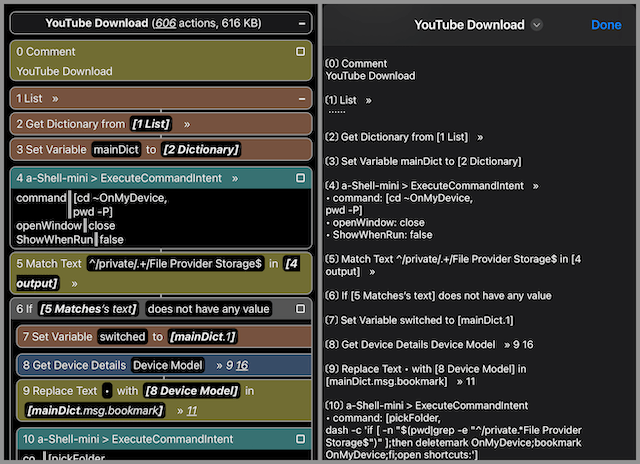
"Copy and paste multiple actions, view/edit/compare/save/import/repair/web-review shortcuts. ... Web Review can also be converted to and viewed/saved as plain text.
 "
"
❧ 2026-01-30